You hit the string and the sound arrives a moment later. You press a key and there is a gap. That is not your playing — it is the time your computer needs to move the sound through.
Sound coming in through an audio interface is processed by the DAW and sent back out, and that round trip takes time. The delay is called latency, and the buffer size setting is the main control for trading it against how hard your computer has to work.
A buffer is a batch of samples
A DAW does not process each sample the instant it arrives. It collects a fixed number of samples, processes them together and sends them on. That batch is the buffer.
A smaller buffer means less waiting, so less delay — but the computer has to repeat its work more often, and without enough headroom you get dropouts and crackles. A larger buffer is more stable, at the cost of a longer wait between input and output.
What the numbers mean
The length of one buffer is:
buffer time (ms) = buffer size ÷ sample rate × 1000
| Buffer size | One buffer at 48 kHz | Typical use |
|---|---|---|
| 64 samples | ≈1.33 ms | Low-latency recording; needs a capable machine |
| 128 samples | ≈2.67 ms | Starting point for recording |
| 256 samples | ≈5.33 ms | Balance of recording and stability |
| 512 samples | ≈10.67 ms | Mixing and heavy projects |
| 1024 samples | ≈21.33 ms | Work where latency does not matter |
Switch between recording and mixing
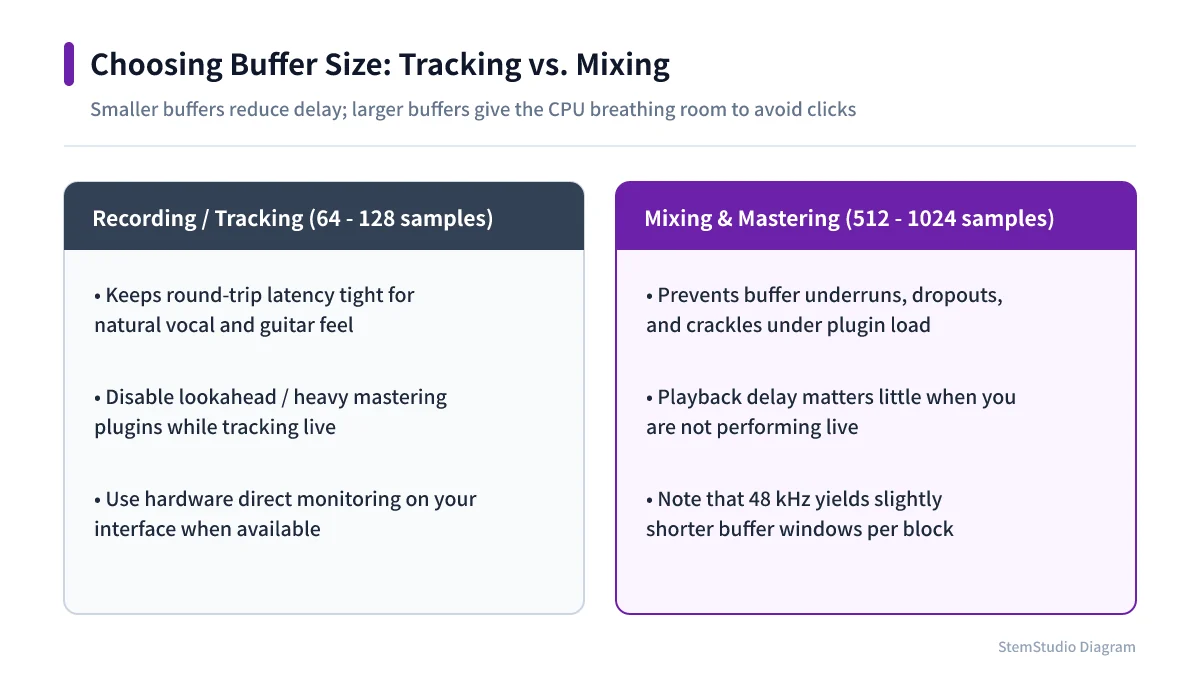
When recording guitar or vocals, start around 128–256 samples and go lower only if nothing crackles. You do not have to reach 64. The right setting is the one where playing feels natural and the audio stays clean.
When mixing, if nobody is playing live, 512 or 1024 is usually fine, and heavy synths or many plug-ins run more reliably with the larger buffer. Switching is not a compromise; it is giving the computer the time each job needs.
When the audio breaks up
If a smaller buffer makes the audio drop out, go back up one step. If that does not fix it, check:
- Are you using the interface’s own driver?
- Do the DAW and interface use the same sample rate?
- Can you pause plug-ins and heavy instruments you do not need while recording?
- Is a USB hub or power-saving setting getting in the way?
- Does the CPU have headroom, or is something running in the background?
On Windows, check whether the manufacturer provides an ASIO driver. Switching from a generic driver to the dedicated one is sometimes all it takes.
Does direct monitoring remove the delay?
If your interface has direct monitoring, it can send the input straight to your headphones without going through the DAW, so the software delay all but disappears.
But if you want to hear the amp simulator or reverb running in the DAW while you play, direct monitoring alone will not do it. Then you either lower the buffer or use DSP effects built into the interface.
Start at 128–256 for recording and around 512 for mixing, then adjust for your setup. Buffer size is not a race to the smallest number — it is the knob that balances how playable things feel against how stable they are.