Right before launching a personal website or web app, two image assets always trip people up: the tiny square icon in the browser tab and the wide preview card that expands when you paste a link into X, Discord, or Slack.
When publishing your first site or web tool, two distinct image assets control how your pages look outside the viewport itself: the tiny square Favicon beside the browser tab title, and the wide OGP Image (og:image) shown whenever someone pastes your URL into social media or chat apps.
1. The browser tab icon: Favicon
The square icon displayed in browser tabs, bookmarks, and Google Search results is called a Favicon (Favorite Icon).
- Recommended sizes: Ship a multi-resolution
favicon.ico(16×16,32×32,48×48),apple-touch-icon.png(180×180) for iOS home screens, and192×192+512×512PNGs for Android/PWA manifests. - Design rule: At 16px wide, thin strokes and small words turn into unreadable blur. Stick to one bold geometric mark or 1–2 initials with clear contrast.
2. The social link preview card: OGP Image
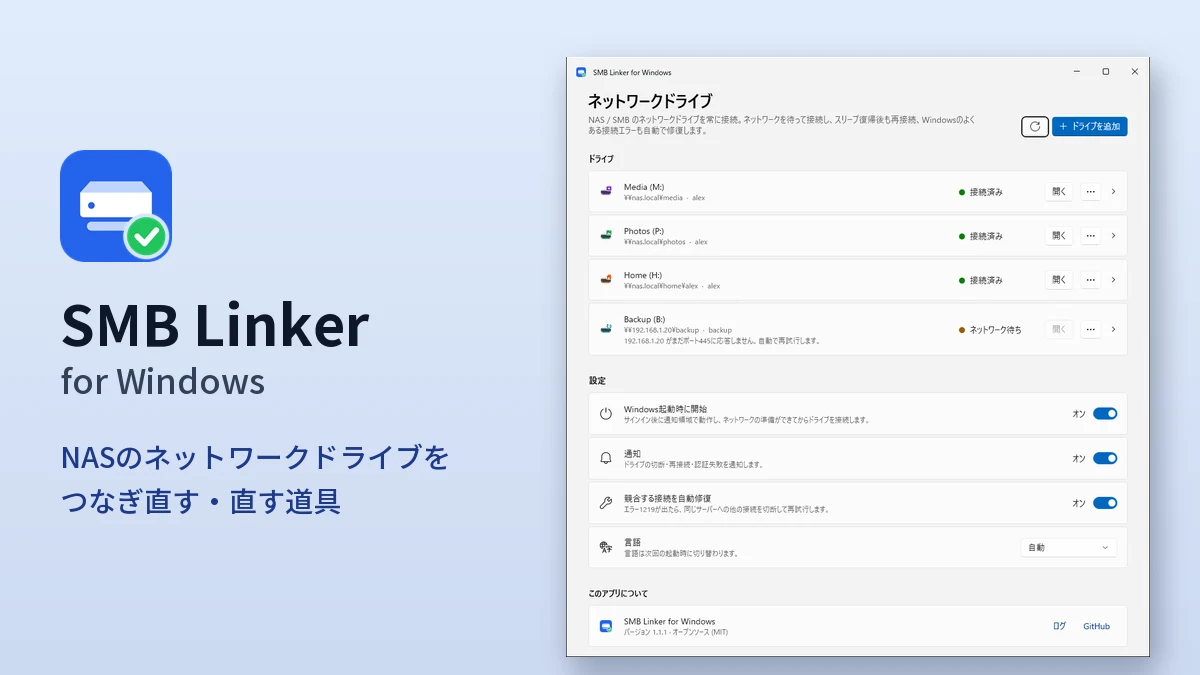
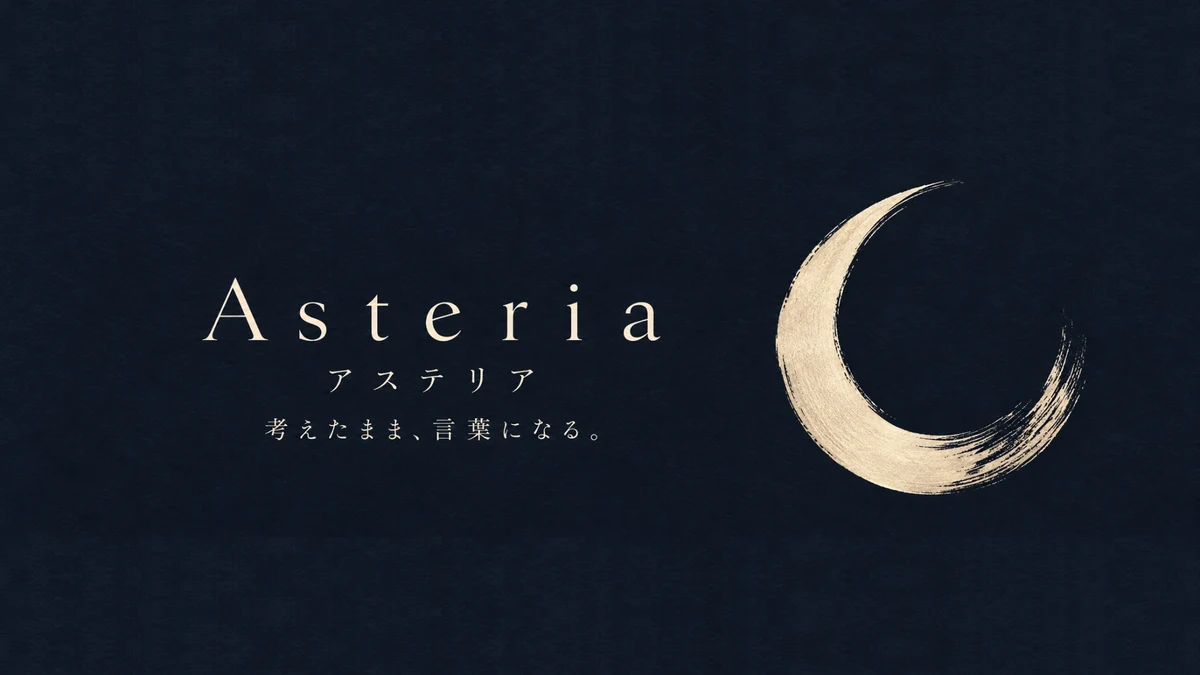
The wide banner shown when pasting a URL into X (Twitter), Discord, Slack, or Facebook is the OGP (Open Graph Protocol) image.
- Standard dimensions: 1200 × 630 px (aspect ratio ~1.91:1) in PNG, JPG, or WebP renders cleanly across nearly every social platform without awkward cropping.
- Always use an absolute URL: Specify
https://example.com/ogp.pngin<meta property="og:image" ... />— external social crawlers frequently fail on relative/ogp.pngpaths.
<link rel="icon" href="/favicon.ico" sizes="any" />
<link rel="apple-touch-icon" sizes="180x180" href="/apple-touch-icon.png" />
<meta property="og:image" content="https://example.com/ogp.png" />
<meta name="twitter:card" content="summary_large_image" />
You can generate the full multi-resolution ICO, iOS, and PWA icon pack locally in one click with our Favicon & App Icon Generator, and size your 1200×630 OGP banner cleanly with the OGP preset in our Image Resizer.