Pemisah audio, edit gambar & gabung PDF gratis
Isolate a part for music practice, change an image width, or combine documents. Choose a task and start without signing up.
- 82 alat
- Tanpa akun · gratis
- Pemrosesan lokal dan fitur jaringan dijelaskan transparan
Semua Alat
Lihat semua alatRecommended

Latest
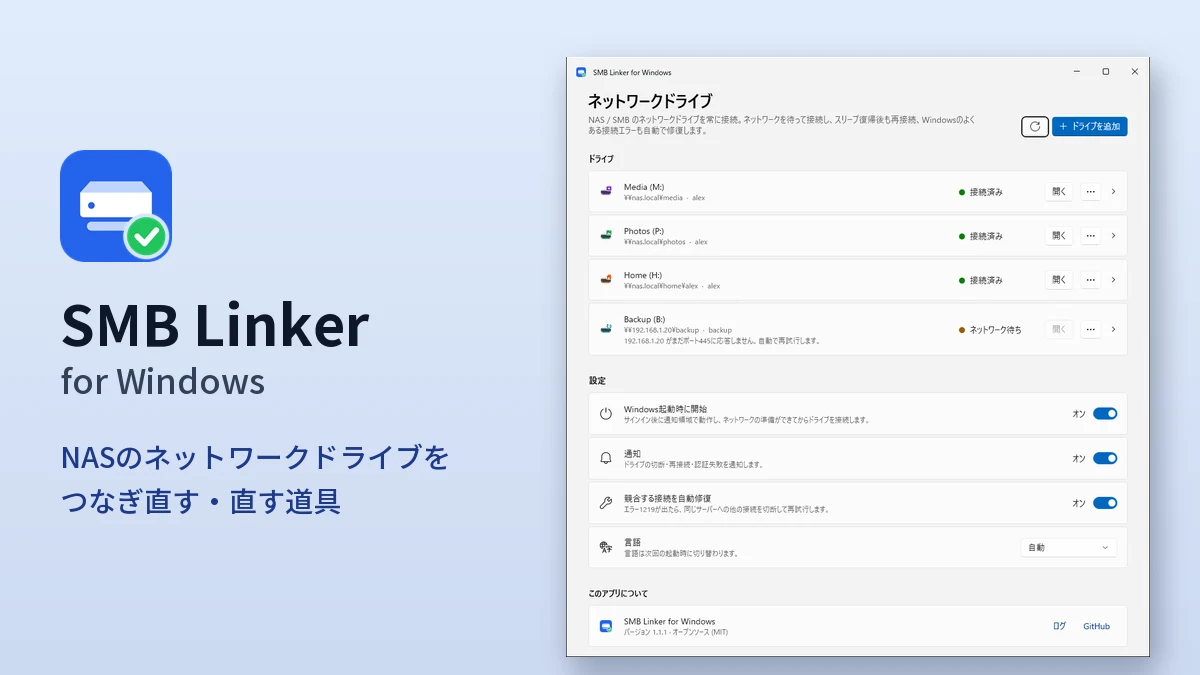 再起動するとNASのドライブが切れる、エラー1219が出る。Windowsのネットワークドライブの困りごとと SMB Linker
 日本語入力にもローカルAIを。前の文を読んで変換する無料IME「Asteria」
 月100円VPNの現実と、iOSショートカット「Brave終了時にVPN切断」の限界
- W3C WebCodecs (Nov 2026 Draft) and the Codec Registry: Where Browser-Only Audio & Video Conversion Hits Its Limits
- Inside OpenAI’s “The Jagged Frontier” Report: Why Internal Agents Hit 79% on Monitoring but Stall at 25% on Serving Stacks
- Inside Linux 7.4-rc1’s Record 19,671 Commits — and What Linus Torvalds Actually Said About AI-Generated Patches
What StemStudio is
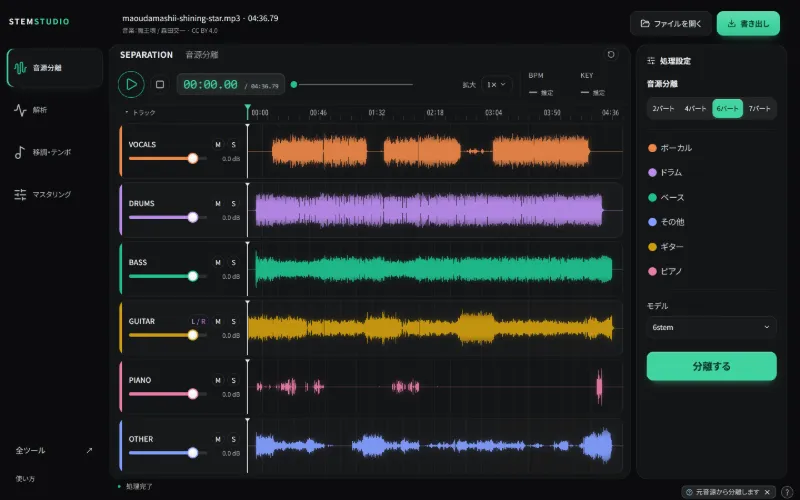
StemStudio is a collection of tools that work entirely in your browser. At its heart is stem separation, splitting a song into vocals and instruments, surrounded by everyday jobs: resizing images, merging PDFs, converting and compressing files, quick calculations and tidying text.
Most online converters send your file to a server to process it. StemStudio has no such step: files are processed on your own device (apart from features whose purpose is delivery, such as device-to-device transfer). Speed then depends on your device, and each page tells you up front what to expect and when something will not run.
- Tools
- 82
- Sections
- 10
- Parts per song
- 6 (7 experimental)
- Bahasa
- 10 bahasa
- Blog posts
- 218
- Started
- July 2026
What makes it different
No uploads to a server
Separation, image editing and PDF merging all run in your browser, so contracts or unreleased songs are never left on someone else’s server. Features whose whole point is to send something, like device-to-device transfer, are listed with every destination on the Data handling page.
Free, with no sign-up
No usage limits and no watermarks. Open a page, choose a file and go all the way to export.
Up to six parts from one song
Vocals, drums, bass, guitar, piano and other, using Meta’s Demucs and Deezer’s Spleeter converted to run in the browser. The experimental 7-stem mode goes on to split the guitar into lead and rhythm.
Check before you export
Listen to each separated part, compare images with the original, and see the real compressed size before saving.
The same tools on your phone
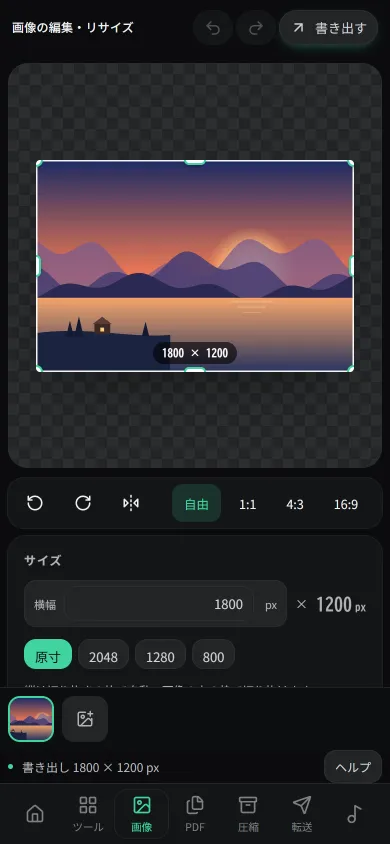
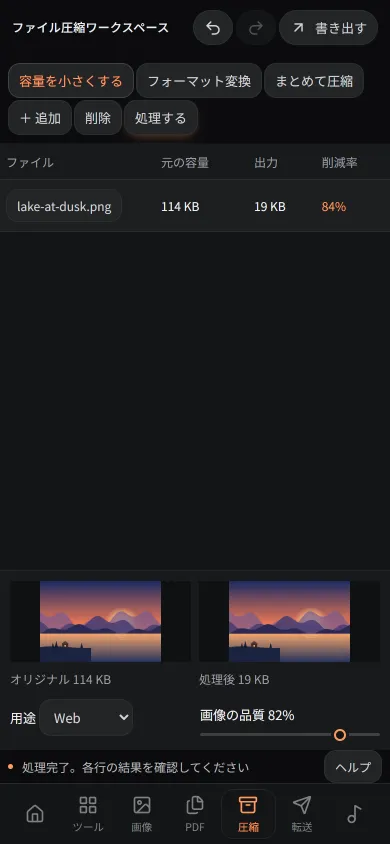
No app to install: they run in your phone’s browser. The sections sit along the bottom of the screen, and tools like photo cropping and compression are laid out for your fingers.
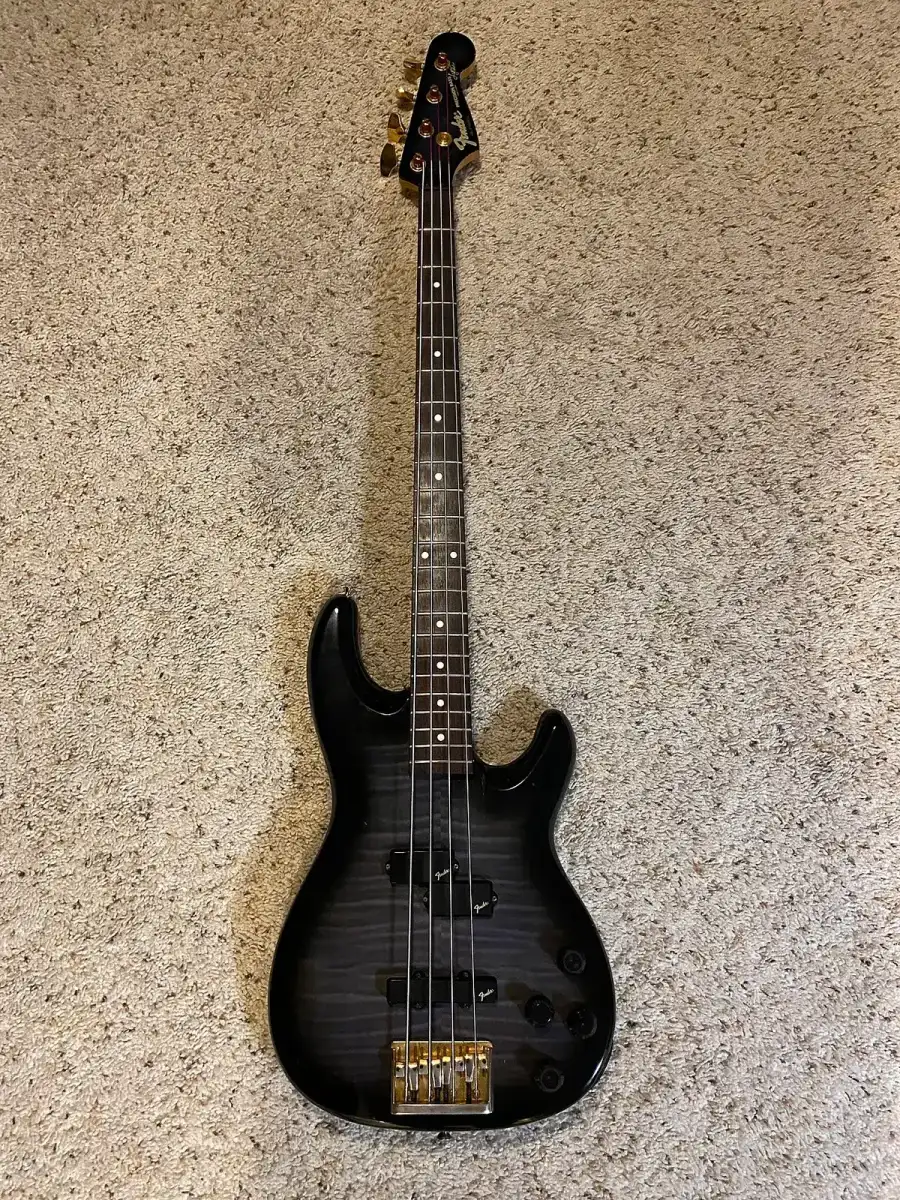
The photo is a sample made for this page.
Three steps
Choose what to do
From the entrances above, or the full tool list.
Add your file
Choose it or drop it on the screen. It is not uploaded to a server.
Check it, then save
Check the result on the spot, then export it in the format you need.
Ratings from users
Ratings opened in November 2026. You can send one from the small card shown after you export, or from any tool’s help window. Stars appear once a tool has 10 ratings.
How it got here
Development starts
Site launches
Blog starts
Image, PDF and file tools added
New home page
Redesign, and phone support
Ratings and feedback open
Free plugin guide published
Questions
Does it cost anything?
No. There are no usage limits, no watermarks on exported files and no paid-only export. The site is funded by ads.
Do I need an account or an app?
Neither. Open a page, choose a file and you can use it all the way through.
Are my files sent anywhere?
Stem separation, image editing, PDFs, compression and conversion all run inside your browser on your own device, and files are not sent to a server. A few tools need the network, such as device-to-device transfer or the speed test; every host they contact and what they send is listed on the Data handling page.
Does it work on a phone?
Yes. For stem separation, the models you can choose depend on your device’s memory, and the screen tells you why if one is unavailable. The image, PDF and compression tools work on a phone just as on a computer.
What kinds of tools are there?
They are grouped into ten sections: audio, files, images, text, documents, security, calculators, network, weather and a few games. The full tool list can be searched by name or by what you want to do.
Who runs StemStudio?
One person builds and runs it, including the design, code, writing and illustrations. The About page has the details.
Where do I report a problem or suggest something?
Use “Report a problem or suggest something” in any tool’s help window. If you need a reply, email the address on the Contact page.